

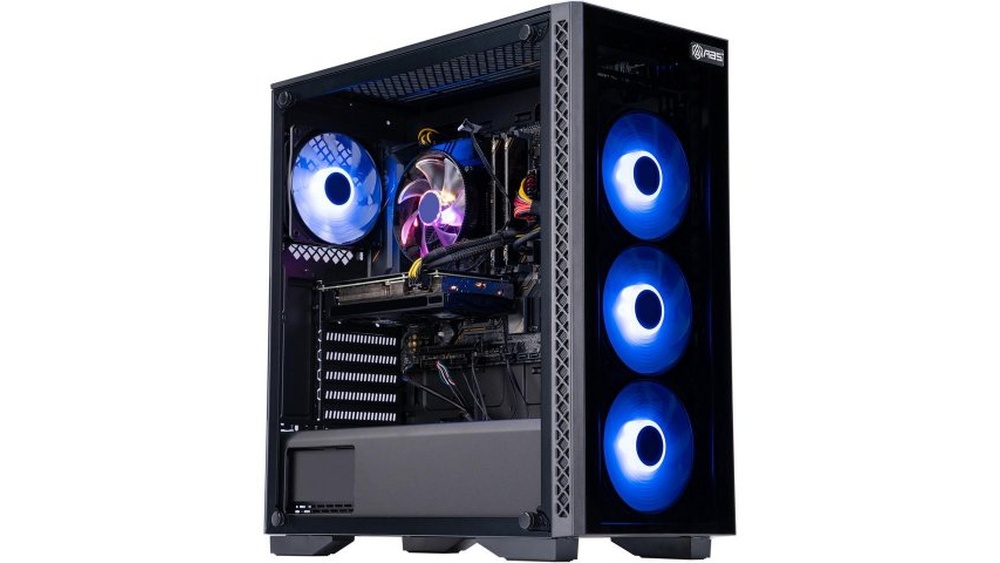
Are the bright LED lights on your computer distracting you or keeping you awake at night? You’re not alone.
Many people want to turn off those glowing lights but don’t know how. What if you could easily disable them and create a calmer, more focused workspace? You’ll discover simple, step-by-step ways to switch off your computer’s LED lights for good.
Keep reading, and take control of your environment right now.
Benefits Of Disabling Led Lights
Disabling LED lights on your computer offers several practical benefits. These small lights may seem harmless, but turning them off can improve your overall experience. From saving energy to protecting your hardware, the advantages are clear and simple.
Energy Savings
LED lights use power even when they seem small. Turning off these lights lowers your computer’s energy use. This change helps reduce your electricity bill. It also supports a greener environment by cutting down energy waste.
Reducing Light Pollution
Bright LED lights can disturb your focus and sleep. Disabling them creates a darker workspace or room. This reduction in light pollution makes your environment calmer. It helps improve your rest and concentration.
Extending Hardware Lifespan
LEDs produce slight heat over time. This heat can add up and affect hardware parts. Turning off LED lights lowers heat exposure. It helps your computer parts last longer and stay healthier.

Common Led Lights On Computers
Computers have small LED lights that show different statuses. These lights help users know what the computer is doing. Some lights stay on, while others blink. They can be helpful but also distracting for some users. Understanding these common LED lights can help you decide which to disable.
Power Indicators
Power indicator lights show if the computer is on or off. They usually glow steadily when the computer is running. If the computer is in sleep mode, the light might blink slowly. This light helps users know the device’s power state at a glance.
Hard Drive Activity Lights
Hard drive activity lights blink when the computer reads or writes data. This blinking means the hard drive is working. It helps users see when the system is busy. The light often flickers during loading or saving tasks.
Keyboard And Mouse Leds
Keyboards and mice have LED lights for status and function. Common ones include Caps Lock, Num Lock, and Scroll Lock lights. Some gaming devices have colorful LEDs for design. These lights can be bright and distracting in dark rooms.
Disabling Led Lights Via Bios
Disabling LED lights through BIOS is a straightforward method to reduce distractions. BIOS controls many hardware settings before the operating system loads. Adjusting LED settings here can turn off lights on your computer at a fundamental level.
This method works without extra software. It also saves power and extends LED life. The process involves entering BIOS, finding LED options, and saving the changes. Follow simple steps to complete this task quickly.
Accessing Bios Settings
Restart your computer. Press the BIOS key during the startup screen. Common keys include F2, Delete, or Esc. The correct key appears briefly on the screen. Press it repeatedly to enter BIOS. Avoid holding the key down.
Locating Led Control Options
Navigate BIOS menus using arrow keys. Look for sections like “Advanced,” “Power,” or “Onboard Devices.” Find LED control or lighting options. Some BIOS versions label this as “LED Configuration” or “RGB Lighting.” Use instructions at the bottom or side of the screen for help.
Saving Changes And Restarting
After disabling LED lights, press the key to save changes. Usually, this is F10 or another key shown on-screen. Confirm the action if prompted. The computer restarts automatically. LED lights should now be off after booting.

Using Software To Turn Off Leds
Many computers have LED lights that stay on all the time. These lights can be bright and distracting. Using software to turn off LEDs is an easy way to reduce this light without opening your computer. Software tools let you control LEDs with just a few clicks. This method is safe and works well for most users.
Manufacturer Utility Tools
Many computer makers include special software for LED control. These tools come with your device or can be downloaded from the manufacturer’s website. They allow you to switch off or adjust LED brightness. Usually, these utilities are easy to use and match your hardware perfectly. Using official tools ensures your device stays safe and stable.
Third-party Applications
Some apps made by independent developers also help manage LED lights. These programs work with many different brands and models. They offer more options like custom colors and effects. You must download third-party apps from trusted sources. Check reviews and ratings before installing to avoid security risks.
Scheduling Led Shutdowns
Many software tools let you set a schedule to turn LEDs off. This feature is helpful for night use or work hours. You can create automatic rules to save energy and reduce distractions. Scheduling makes LED control hands-free and convenient. Set the time once, and the software does the rest.
Physical Methods To Disable Leds
Physical methods to disable LEDs on a computer provide simple, direct solutions. These methods do not require software changes or technical skills. They involve handling the LED lights or their power sources physically. This approach ensures the lights stop glowing without complex setups.
Many users prefer physical methods to avoid software bugs or system changes. These techniques offer immediate results and can be reversed if needed. Understanding these methods helps choose the best way to reduce unwanted light from your computer.
Covering Or Taping Leds
Covering LEDs with tape is an easy way to block light. Use opaque tape like electrical or black duct tape. Cut a small piece to fit over the LED. This method does not harm the LED or the computer. It only prevents the light from showing.
Clear tape will not work well because light passes through. Covering is quick and can be done without opening the computer. It is ideal for users who want a fast, no-risk fix.
Disconnecting Led Power Wires
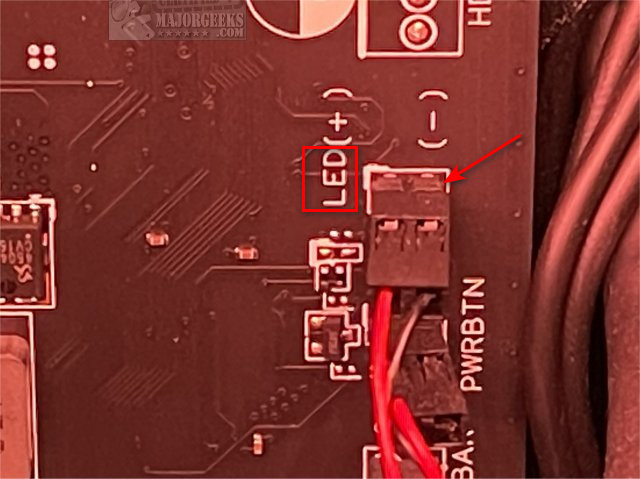
Disconnecting the LED power wires stops the light at its source. This method requires opening the computer case. Locate the LED wires on the motherboard or device. Gently unplug or cut the wires to disable the LED.
This method is more permanent than covering. It stops power to the LED completely. Take care to avoid damaging other parts. Only attempt this if comfortable with computer hardware.
Replacing Leds With Non-illuminated Parts
Replacing LEDs with non-illuminated parts is a clean and durable solution. Remove the LED carefully from the circuit board. Install a non-lighting resistor or dummy component in its place. This stops the light without affecting the device’s function.
This method suits advanced users or technicians. It requires soldering skills and proper tools. The result is a neat setup with no glowing lights.
Troubleshooting Led Control Issues
Controlling LED lights on your computer can sometimes be tricky. Troubleshooting LED control issues helps you find what stops the lights from working as you want. This section covers common problems and easy fixes.
When Bios Lacks Led Options
Some computers do not have LED settings in the BIOS. Without these options, you cannot turn off or change LED lights from there. Check your motherboard manual to confirm if LED control exists in BIOS. If not, try other methods like software tools or physical switches.
Software Conflicts
Multiple programs controlling LEDs can cause conflicts. These conflicts may stop lights from turning off or changing colors. Close all LED control software and open only one app at a time. Update the software to the latest version to reduce bugs and improve compatibility.
Hardware Limitations
Some LED lights are hardwired and cannot be disabled. This means no software or BIOS setting can change them. In such cases, cover the lights with tape or remove the LED cables if possible. Knowing your hardware’s limits helps avoid frustration.
Additional Tips To Save Power
Saving power on your computer helps reduce energy bills and extends device life. Besides disabling LED lights, small changes can make a big difference. These tips focus on easy ways to save energy without losing performance.
Adjusting Display Brightness
Lowering your screen brightness cuts power use. Bright screens consume more energy than dim ones. Set brightness to a comfortable but low level. This change quickly saves battery and reduces eye strain.
Using Power Saving Modes
Power saving modes limit background tasks and lower hardware use. Activate modes like Sleep, Hibernate, or Battery Saver. These modes reduce energy consumption during idle times. Your computer stays ready but uses less power.
Unplugging Unused Peripherals
Devices like printers, webcams, and external drives draw power even when off. Unplug peripherals not in use to save electricity. This simple step stops unnecessary power drain. It also keeps your workspace tidy.
Frequently Asked Questions
How To Disable Led Lights On A Computer?
To disable LED lights on your computer, access the BIOS or use manufacturer software. Look for LED control settings. Alternatively, unplug LED cables inside the case if possible. Always follow safety precautions to avoid damage.
Why Disable Led Lights On A Computer?
Disabling LED lights reduces distractions and saves power. It also helps create a cleaner, minimalistic workspace. Some users prefer a darker environment for better focus and aesthetics.
Can Led Lights Affect Computer Performance?
LED lights do not affect computer performance. They consume minimal power and have no impact on processing speed or hardware function.
Is It Safe To Disable Computer Led Lights?
Yes, it is safe to disable LED lights if done correctly. Use official software or BIOS settings to avoid hardware damage. Avoid cutting wires or forcing components.
Conclusion
Disabling LED lights on your computer can reduce distractions. It also helps save a bit of power. You can control lights through settings or software easily. This small change improves your focus and comfort. Remember to check your device manual for specific steps.
Taking control of your computer’s lights is simple and helpful. Try it today and enjoy a calmer workspace.





Leave a Reply