
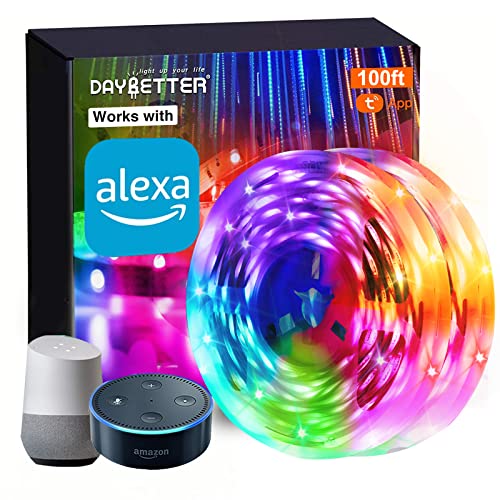
Common Troubleshooting Tips for Smart LED Lights
Affiliate links — we may earn a commission
Hey there! Are you frustrated with your smart LED lights acting up? Don’t worry, I’ve got your back! In this blog post, I’ll be sharing some handy troubleshooting tips that will have your lights shining bright in no time. No matter if you’re a newbie in the world of smart lighting or a seasoned pro, these tips will help you uncover and fix those pesky issues that might be dimming your mood. So, let’s dive in and get those lights back to their dazzling best!
Enhance your space with the top-rated Smart LED lights


Troubleshooting Tip 1: Check the Power Connection
Introduction:One of the most common issues that users face when dealing with smart LED lights is a sudden loss of power. You might be excited to add some ambiance to your living room or patio, only to find that your lights aren’t working as expected. Before getting frustrated and assuming something is seriously wrong, it’s always a good idea to start troubleshooting from the basics. In this blog section, we’ll dive into the importance of checking the power connection and how to do it properly.


Why is the Power Connection Important?
Ensure Proper Plugging:
Before anything else, it’s vital to make sure your smart LED lights are properly plugged in. Even the best smart lights won’t work if they aren’t securely connected to a power source. A loose connection can result in sporadic behavior or complete functionality loss. Take a moment to check the connection between your lights and the power outlet.
Verify the Power Source:
Another crucial aspect to consider is the functionality of the power source itself. Even if your lights are plugged in correctly, it’s possible that the power source is experiencing issues. Perhaps a circuit breaker has tripped, or there’s an ongoing power outage in your area. Verify that other devices connected to the same power outlet are working correctly. If they aren’t, it’s a clear sign that the problem lies with the power source and not your smart LED lights.
Steps to Check the Power Connection:
Step 1: Examine the Power Cord:
Inspect the power cord of your smart LED lights for any signs of damage or wear. Sometimes, a frayed or damaged cord can prevent the proper flow of electricity, leading to malfunctioning lights. If you notice any issues with the power cord, it’s often best to replace it with a new one to ensure safe and uninterrupted power supply.
Step 2: Check the Outlet:
Carefully examine the power outlet where your smart LED lights are plugged in. Ensure that it’s properly functioning by connecting a different device, such as a desk lamp or phone charger, to the same outlet. If the alternative device isn’t receiving power, you may need to investigate further or call an electrician to resolve the issue.
Step 3: Consider Using a Surge Protector:
To protect your smart LED lights from power surges or voltage fluctuations, it’s a good idea to use a surge protector. A surge protector acts as a barrier, absorbing excess voltage and preventing it from reaching your lights. Ensure that your surge protector is functioning correctly and that it hasn’t tripped due to a power surge.
Benefits of Proper Power Connection:
Now that we understand why checking the power connection is crucial, let’s highlight some key benefits:
- Avoid unnecessary troubleshooting: By ensuring a proper power connection, you can save time and frustration by avoiding unnecessary troubleshooting of non-existent issues.
- Prolong the life of your smart LED lights: A stable power connection prevents sudden power interruptions that can potentially damage your smart lights.
- Enhance user experience: A seamless power connection allows you to enjoy the benefits of your smart LED lights without any interruptions or disruptions.
Troubleshooting Tip 2: Reset the Lights
If you’re facing issues with your smart LED lights, such as unresponsiveness or erratic behavior, resetting them can often help resolve the problem. In this blog section, we will guide you through the process of resetting your smart LED lights.
![Cable Matters [ETL Listed] 3 Pack Grounded Outlet with ON Off Switch, Single Outlet Switch ON Off/Plug Switch in Black](https://m.media-amazon.com/images/I/71Xg9eTm-ML._SS520_.jpg "Common Troubleshooting Tips for Smart LED Lights 11")


Finding the Reset Button or Process
Most smart LED lights come equipped with a reset button or a specific process that needs to be followed. Here are some steps to help you locate and use the reset feature:
- User Manual: Start by referring to the user manual that came with your smart LED lights. Look for a section on troubleshooting or resetting the lights. The user manual usually provides step-by-step instructions that are specific to your lights.
- Manufacturer’s Website: If you don’t have the user manual or need more information, visit the manufacturer’s website. Look for the support or FAQ section, and search for instructions on resetting your lights. The website often provides detailed guides or videos that can assist you with the process.
Steps to Reset Your Smart LED Lights
Once you’ve found the instructions for your specific lights, it’s time to proceed with the reset process. Here are some common steps that can apply to various smart LED lights:
- Power Off: Turn off the power supply to your lights either by switching off the corresponding light switch or removing the light bulbs from their sockets. Wait for a few seconds to ensure the lights are completely powered down.
- Locate the Reset Button: Identify the location of the reset button on your smart LED lights. It can usually be found on the control panel or on the light bulb itself. If you cannot find a physical reset button, look for alternative methods outlined in the instructions.
- Reset Process: Follow the specific reset process provided by the manufacturer. This may include pressing and holding the reset button for a certain duration of time or performing a sequence of actions to initiate the reset.
- Power On: After completing the reset process, turn the power supply back on by flipping the light switch or reinserting the light bulbs.
Benefits of Resetting Your Smart LED Lights
Resetting your smart LED lights can bring about several benefits, such as:
- Restoring Functionality: If your lights were unresponsive, resetting them can bring them back to their normal working state, allowing you to control them via the smart home ecosystem or apps.
- Resolving Erratic Behavior: By resetting your lights, you can fix issues like flickering, incorrect color display, or random behavior that may have occurred due to software glitches or communication errors.
- Improving Connectivity: Sometimes, smart LED lights can lose their connection to the network or smart hub. Resetting them can help establish a stable connection, ensuring seamless operation and control.
Troubleshooting Tip 3: Check the Network Connection
Smart LED lights are an excellent addition to any home, offering convenience and control at your fingertips. However, like any connected device, they rely on a stable network connection to function properly. If you’re experiencing issues with your smart lights, the problem might lie with your network connection. In this blog post, we’ll explore the importance of checking the network connection and provide you with some useful troubleshooting tips.


Make sure your lights are within range of the router or hub
One of the primary reasons for connectivity issues with smart LED lights is that they are not within range of the router or hub. To ensure a strong network connection, it’s crucial to place your lights within a reasonable distance of the router or hub. While the exact range may vary depending on the brand and model, a general rule of thumb is to keep your lights within 30 feet of the router or hub.
Ensure that your network is working properly
Even if your lights are within range of the router or hub, there could be issues with your network that are impacting the connection. Here are some steps you can follow to ensure that your network is working properly:
- Restart your router: Sometimes, a simple restart of your router can resolve connectivity issues. Unplug the power cable, wait for a few seconds, and then plug it back in. Give the router a few minutes to restart, and then check if the connection to your smart lights has improved.
- Check other connected devices: If other devices on your network are experiencing connectivity issues as well, it’s a good indication that there might be a problem with your network. Try connecting to other Wi-Fi or Bluetooth devices to determine if the issue is specific to your smart lights or the entire network.
- Update firmware or software: Manufacturers often release updates to improve the performance and compatibility of their smart lights. Check for any available firmware or software updates for your lights and install them if necessary. These updates can address potential connectivity issues and enhance your overall experience.
Network reset: a simple solution
If you’ve tried the above steps and are still experiencing connectivity issues with your smart lights, a network reset might be needed. Here’s how you can perform a network reset:
- Unplug your router and any connected hubs or extenders from the power source.
- Wait for about 30 seconds or more, and then plug them back in.
- Give your network devices a few minutes to reconnect and establish a stable network connection.
- Once the network is back up and running, test the connection with your smart lights to see if the issue has been resolved.
Performing a network reset can often fix minor network issues that may be affecting your smart lights’ connectivity.
Keeping Up with the Latest Firmware and Apps
Smart LED lights have revolutionized the way we illuminate our homes, allowing us to set the mood with just a few taps on our smartphones. However, like any technological marvel, these lights can encounter hiccups from time to time, leaving us scratching our heads in frustration. One common culprit behind these issues is outdated firmware or incompatible apps.


The Impact of Outdated Firmware and Incompatible Apps
When your smart LED lights are running on outdated firmware or paired with incompatible apps, you may experience various problems. These can range from minor glitches, such as lights not responding promptly to your commands, to more significant setbacks like the lights failing to connect to Wi-Fi, or even random crashes. These issues can be extremely frustrating, but fear not! Updating your firmware and apps can often be a simple fix.
Finding and Installing Firmware Updates
To address firmware-related issues, it’s crucial to keep your smart LED lights up to date with the latest software releases. Here’s how you can do it:
- Identify the brand and model: Start by identifying the brand and model of your smart lights. This information is usually found on the product packaging, manual, or the lights themselves. For example, Ninja Coffee Maker XL Pro or Salomon Speedcross 5 Running Shoes.
- Visit the manufacturer’s website: Go to the manufacturer’s website and search for your specific smart lights. Look for a dedicated support section or a downloads page.
- Check for firmware updates: Once you’ve found the support or downloads page, locate the firmware updates section. Here, you should find the latest firmware version available for your lights. Make sure to also review any release notes or documentation that accompanies the update.
- Follow the installation instructions: Download the firmware update file and carefully follow the installation instructions provided by the manufacturer. The process may vary between brands and products, so ensure you’re following the correct steps for your specific lights.
Updating Associated Apps
While firmware updates primarily focus on resolving hardware-related issues, keeping your associated apps up to date is essential for ensuring optimal performance. To update your apps:
- Open the app store: Launch the app store on your smartphone, such as the Apple App Store or Google Play Store.
- Search for the app: Use the search function in the app store to find the companion app for your smart LED lights. Look for an app developed by the same manufacturer as your lights.
- Check for updates: If an update is available, you’ll see an option to update the app. Tap on it and follow the prompts to install the latest version.
The Benefits of Updating Firmware and Apps
Regularly updating your firmware and associated apps brings several advantages, including:
- Bug fixes: Firmware updates often contain bug fixes that address known issues, improving the overall stability and reliability of your smart lights.
- Performance enhancements: Updates can unlock additional features, improve the responsiveness of your lights, or optimize power efficiency, providing you with a better lighting experience.
- Compatibility: Firmware updates can enhance compatibility, ensuring seamless integration between your smart lights, smartphone, and home automation systems.
- Security patches: Updating firmware and apps can address security vulnerabilities, safeguarding your smart lights and protecting your privacy.
Wrapping It Up: Essential Tips to Keep Your Smart LED Lights Shining Bright
In conclusion, troubleshooting smart LED lights can be a straightforward process if you follow these common tips. Always remember to check the power connection, reset the lights if needed, make sure you have a stable network connection, and keep your firmware and apps up to date. By following these steps, you can quickly resolve any issues and enjoy the benefits of your smart LED lights. If you ever encounter any problems, don’t worry! Remember, you have the knowledge and tools to troubleshoot and get your lights back up and running in no time. Happy troubleshooting!



I never knew that resetting the light could solve common issues. Will definitely try this next time!
I have experienced some flickering with my LED lights. Will try the voltage adjustment tip mentioned here.
Great article! These troubleshooting tips are really helpful.
Who needs smart LED lights when you can have a disco ball? Bring on the 70s vibes!
The troubleshooting steps are well-explained and easy to follow. Thanks for sharing.
Ive tried all the troubleshooting tips for my Smart LED lights, but theyre still not working. Any ideas?
It’s interesting to learn that overheating can also cause issues with LED lights. Good to know!
Who needs smart LED lights when you can have a disco ball? Bring on the party vibes!
The step-by-step approach in this article makes troubleshooting LED lights a breeze.
This is exactly what I was looking for. Now I can troubleshoot my LED lights without any hassle.
Ugh, why are these smart LED lights always so finicky with power connections?!
Who needs smart LED lights when you can have a disco ball? #BringBackThe70s
I love how Smart LED lights can enhance my space, but sometimes the power connection is a nightmare! 😩
These tips will save me time and money instead of calling a professional. Thank you!
I think Smart LED lights are overrated. Stick to traditional lighting for simplicity.
I wish I had come across this article earlier. Could have saved me from a lot of frustration.
Who needs smart LED lights? Just stick to regular bulbs! Less hassle, same brightness.
I have shared this article with my friends who also have smart LED lights. Thanks for the troubleshooting tips.
Who needs Smart LED lights? Just stick with good old-fashioned light bulbs!
I dont get the hype about smart LED lights. Regular ones work fine!
Smart LED lights offer convenience, energy savings, and customization options that regular lights cant match. Embrace the future of lighting technology and discover the endless possibilities that smart LEDs provide. Dont knock it till you try it!
I think smart LED lights are overrated. Stick to traditional bulbs!
I think Smart LED lights are overrated. Stick to traditional lights for simplicity.
I have bookmarked this article for future reference. Very valuable information.
I appreciate the troubleshooting techniques provided here. Simple yet effective.
I think Smart LED lights are overrated. Stick to regular bulbs for simplicity.
Why do we even need smart LED lights? Regular ones work just fine.
I think Smart LED lights are overrated. Regular bulbs work just fine!
Smart LED lights offer energy savings, customization, and convenience that regular bulbs simply cannot match. The technology is constantly evolving to improve our lives. Embrace the future, embrace the efficiency of smart lighting.
I think smart LED lights are overrated. Regular bulbs work just fine!
I think Smart LED lights are overrated. Regular lights work just fine!
I think smart LED lights are overrated. Regular bulbs work just fine!
Power connection is crucial for smart LED lights – do you agree or not?
Why is checking the power connection so crucial for Smart LED lights?
Why bother with troubleshooting when you can just buy new lights? 🤷♂️
I think smart LED lights are overrated. Regular bulbs work just fine!
I think smart LED lights are overrated. Regular bulbs work just fine!
I think Smart LED lights are overrated. Regular bulbs work just fine!
Smart LED lights offer energy efficiency, customization, and convenience that regular bulbs cant match. Embrace the future of lighting technology and experience the benefits for yourself. Dont knock it until youve tried it!
I think Smart LEDs should come with a lifetime warranty. Whos with me?
I think power connections are overrated! Who needs em for smart lights anyway?
Ive gotta say, the power connection bit is important, but what about the wifi issues many face with smart LED lights? Its not all about power and proper plugging. Ive had my lights perfectly plugged in, but no wifi, no party. Would love to see some troubleshooting tips on that one, folks.
I appreciate the informative article, indeed power connection is key. But, Ive got a question: wouldnt it be more helpful to talk about how to diagnose the issues with the LEDs connectivity? The WiFi and Bluetooth connections are often the real culprits, dont you think?
While I appreciate the advice on checking power connections, I feel the article misses out on an important point – Wi-Fi connectivity issues. Ive often found my Smart LED lights malfunctioning due to poor internet connection. Maybe the troubleshooting guide could delve into that too? Just a thought.
Absolutely agree! Internet issues are often the hidden culprit behind smart device malfunctions.
Isnt it funny how weve moved from simply switching bulbs to troubleshooting smart LEDs? Soon well need an IT degree to turn on our lights. What happened to the good ol bulbs?
Guess youd prefer using candles and horse carriages too? Progress waits for no one!
The article was informative, but Im curious, wouldnt a faulty power connection potentially damage the Smart LED lights? Also, could improper plugging impact the lifespan of these lights?
Interesting read, but wouldnt it be helpful to discuss the role of software updates in troubleshooting Smart LED lights? Ive found them to be a common culprit in many issues.
Absolutely agree! Software updates often cause more problems than they solve for Smart LED lights.
I disagree with the articles emphasis on power connection as the top troubleshooting tip for smart LED lights. In my experience, most issues stem from connectivity or software glitches. Lets not overlook those!
I dont know about you, but I always forget to check the power connection first when my smart LED lights act up. Who knew it could be that simple? Definitely going to give it a try next time!
I totally agree that checking the power connection is crucial for smart LED lights. Its like the foundation of a house – without it, nothing else works properly. Always make sure those plugs are snug!
Interesting article, but dont you think smart LEDs are overrated? I mean, why do we need lights that connect to our Wi-Fi? Isnt a good old switch enough? Just my two cents.
Interesting read, but arent these smart LEDs just complicating simple things? I miss the old days of just flipping a switch. Whats the real value of color-changing bulbs anyway?
Interesting read! But why no mention of potential Wi-Fi connectivity issues affecting these smart LEDs?
Perhaps the writer assumed Wi-Fi connectivity was a given, not a stumbling block for tech-savvy readers.
Has anyone else noticed that a power surge can mess with the LEDs color accuracy? Just curious.
Interesting tips, but what about flickering issues in LED lights? Any suggestions on how to fix that?
Has anyone tried switching off the main power supply for a minute as a troubleshooting step? Works for me sometimes!